Notifications
The Notifications module lets you create, schedule, and broadcast notification banners on one or multiple screens.
Page layout
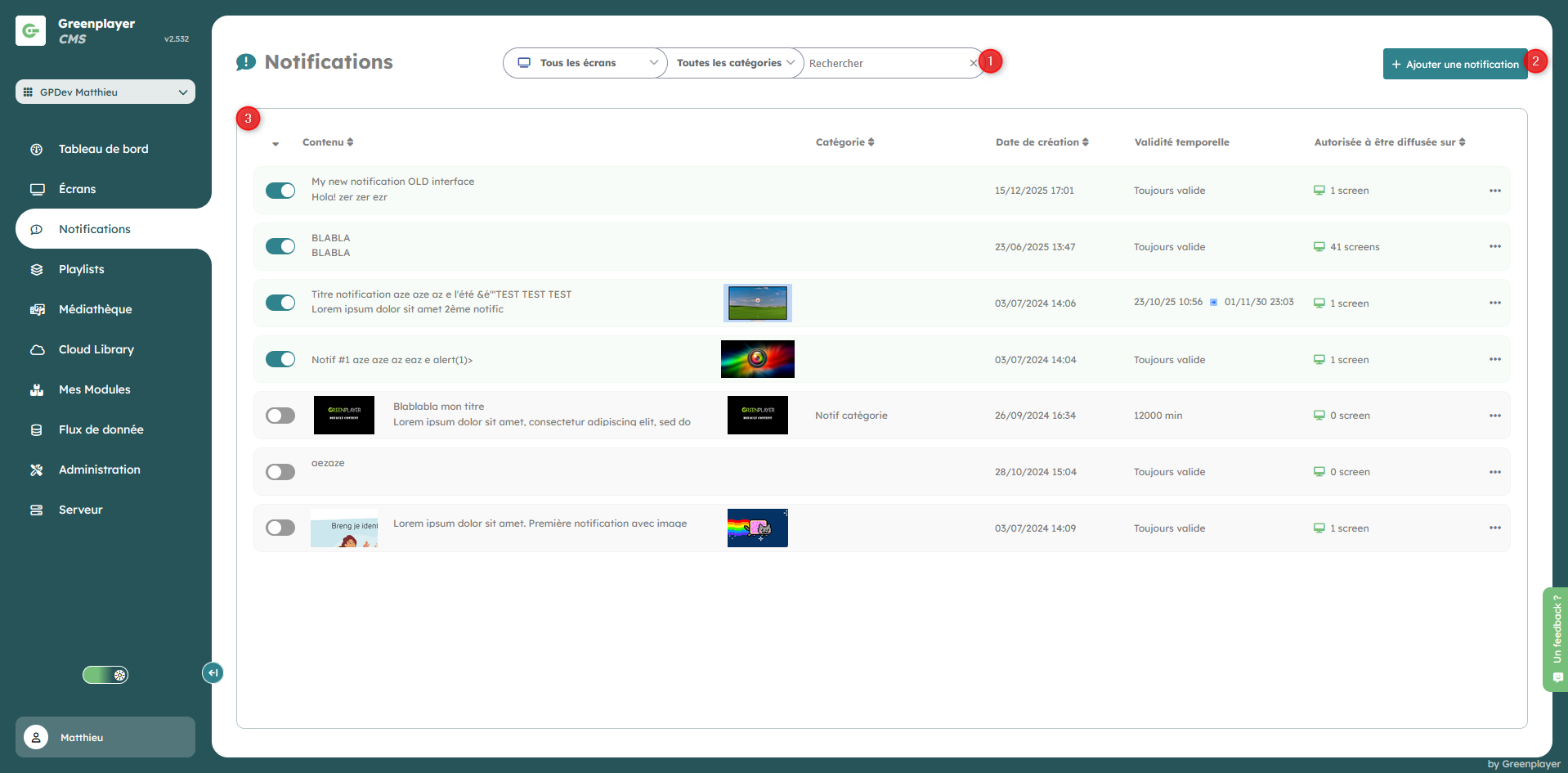
The page is divided into sections:
- A filter bar (screen, category, text search)
- An Add notification button
- A notifications list with columns:
- status (active/inactive)
- content
- category (if the option is enabled)
- creation date
- time validity
- number of target screens
Create a notification
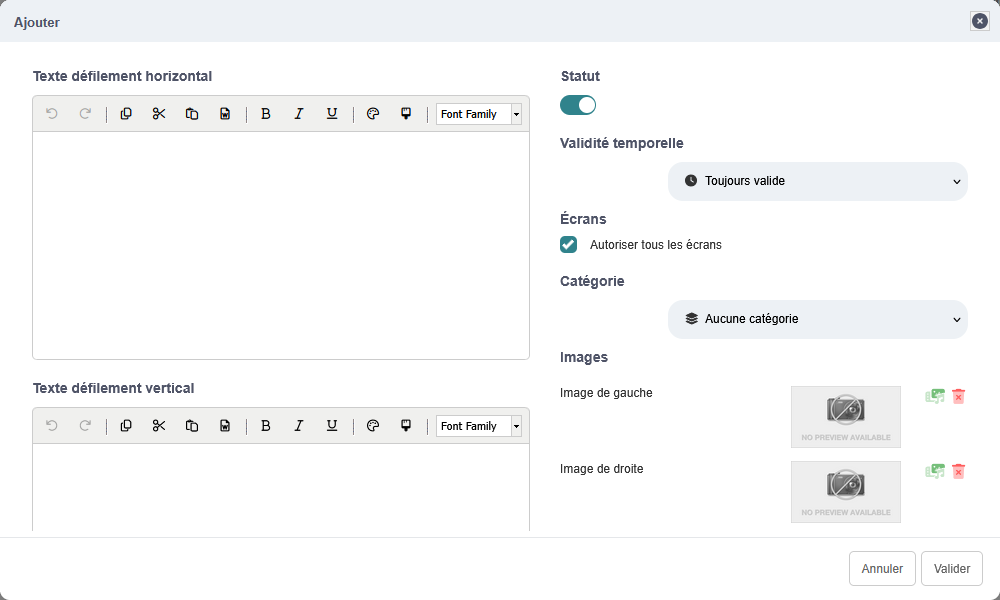
Click Add notification, then fill in:
- The
Horizontal scrolling textand/or theVertical scrolling text. - The status (enabled / disabled)
- The time validity
- The list of target screens
- The notification category (if the option is enabled)
- Left and/or right images
- Only one text field is required. All other fields are optional.
Horizontal or vertical scrolling?

Horizontal scrolling
Horizontal scrolling text is displayed on a single line and scrolls from right to left if it is too long to be fully displayed.
Vertical scrolling
Vertical scrolling text is displayed across multiple lines and scrolls from top to bottom if it is too long to be fully displayed.
Displaying both texts at the same time
As in the example above, if both texts are defined, horizontal scrolling is shown on a single line at the top of the notification banner, while vertical scrolling text uses the remaining space below.
Time validity
The form provides 3 modes:
- Always valid: no date limits.
- Fixed duration: duration in hours or minutes.
- Fixed date: start and end date/time.
Notes:
- If a duration is set to
0, the applied duration becomes 15 minutes. - When re-enabling a fixed-duration notification, dates are recalculated from the current time.
Screen targeting
You can target:
- All authorized screens
- A selection of screens
- A group (including its subgroups)
The form automatically hides/shows fields to avoid conflicting selections.
Available actions
On each notification row:
- Enable/disable via the status switch
- Open the actions menu:
- Preview
- Edit
- Delete
- Click the number of screens to precisely edit the list of target players
Preview
The Preview action opens a rendering of the banner as it will be displayed:
- left image (if defined)
- texts (horizontal / vertical)
- right image (if defined)
Search, filters, and sorting
The list supports:
- filtering by screen
- filtering by category
- text search (title/description/category)
- sorting by status, content, date, number of screens, and category
Filters and sorting are applied live in the list.
Behavior on save
When creating, editing, enabling/disabling, or deleting a notification, all linked screens with notification banners enabled automatically receive the change.