Export to Excel
You can create an Excel export from an existing configuration or start a new one. You can filter by service or agent, name the export, and add multiple sheets.
Choose between PDF and Excel
- PDF: choose this format for a visual document that is easy to share.
- Excel: choose this format when you need organized sheets and want to work with the data in a spreadsheet.
Example configuration
To prepare service tracking, name the export "Activity – Service X – Period", apply the service filter, and add the required sheets. Then check the preview to make sure each sheet contains the expected information and the filters are consistent.
A saved export can be reused as a configuration; still check the period and filters each time you generate a new export.
Export steps
1. Select Excel
In Export, choose Excel.
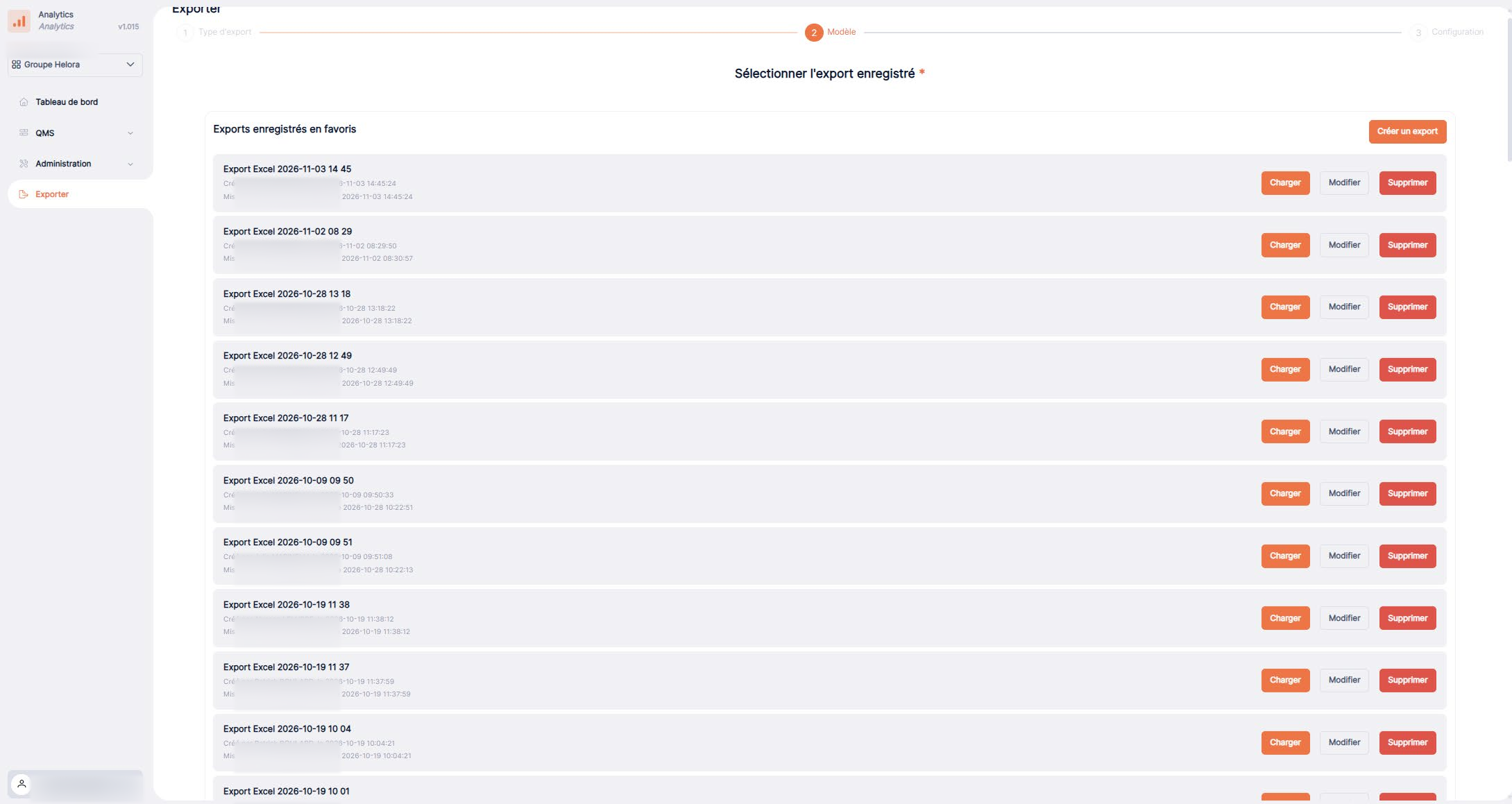
2. Choose or create an export
Select an existing export or start creating a new one.
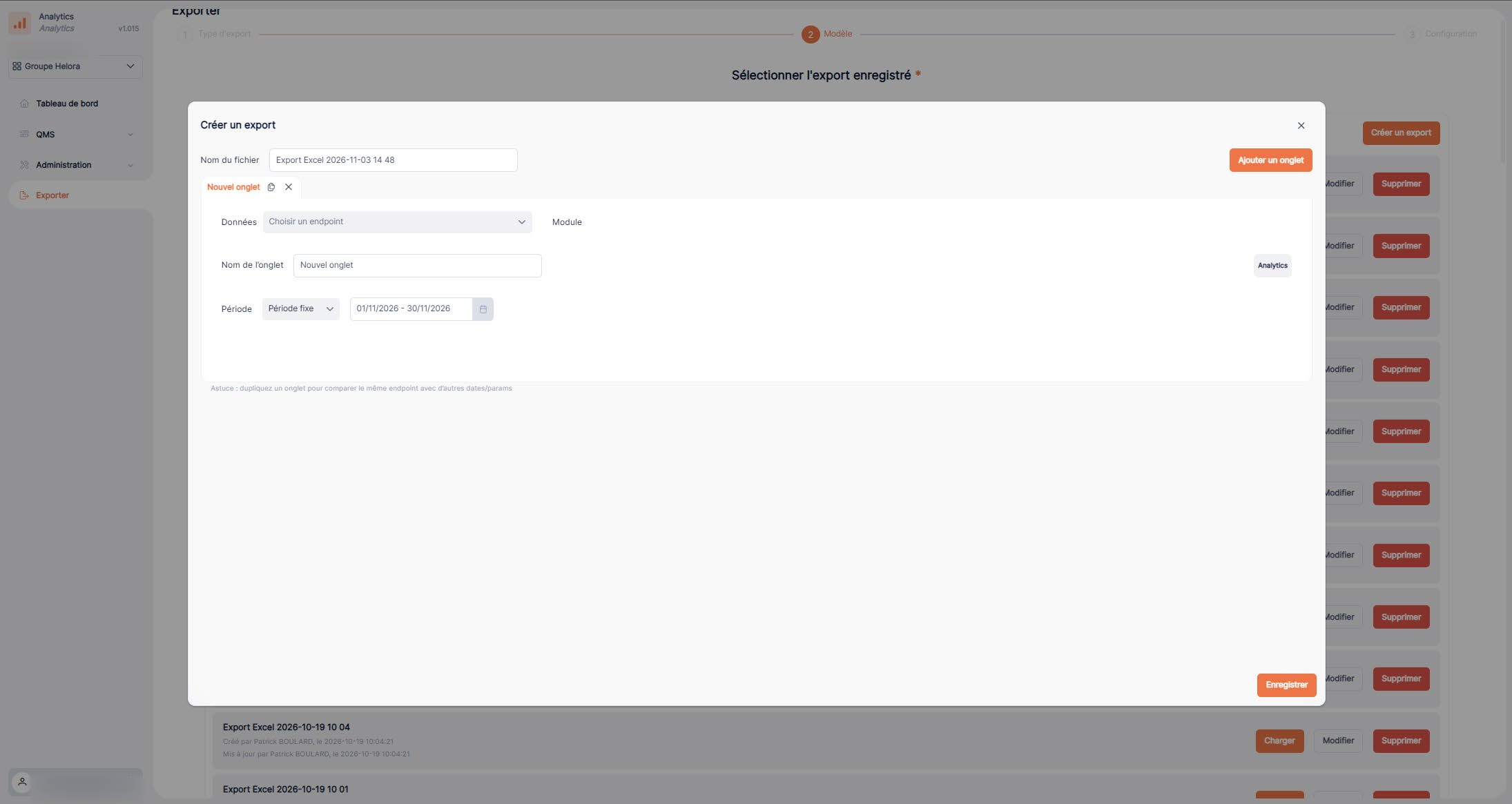
3. Name the export and apply filters
Enter a name and choose the filters you need, such as an agent or service.
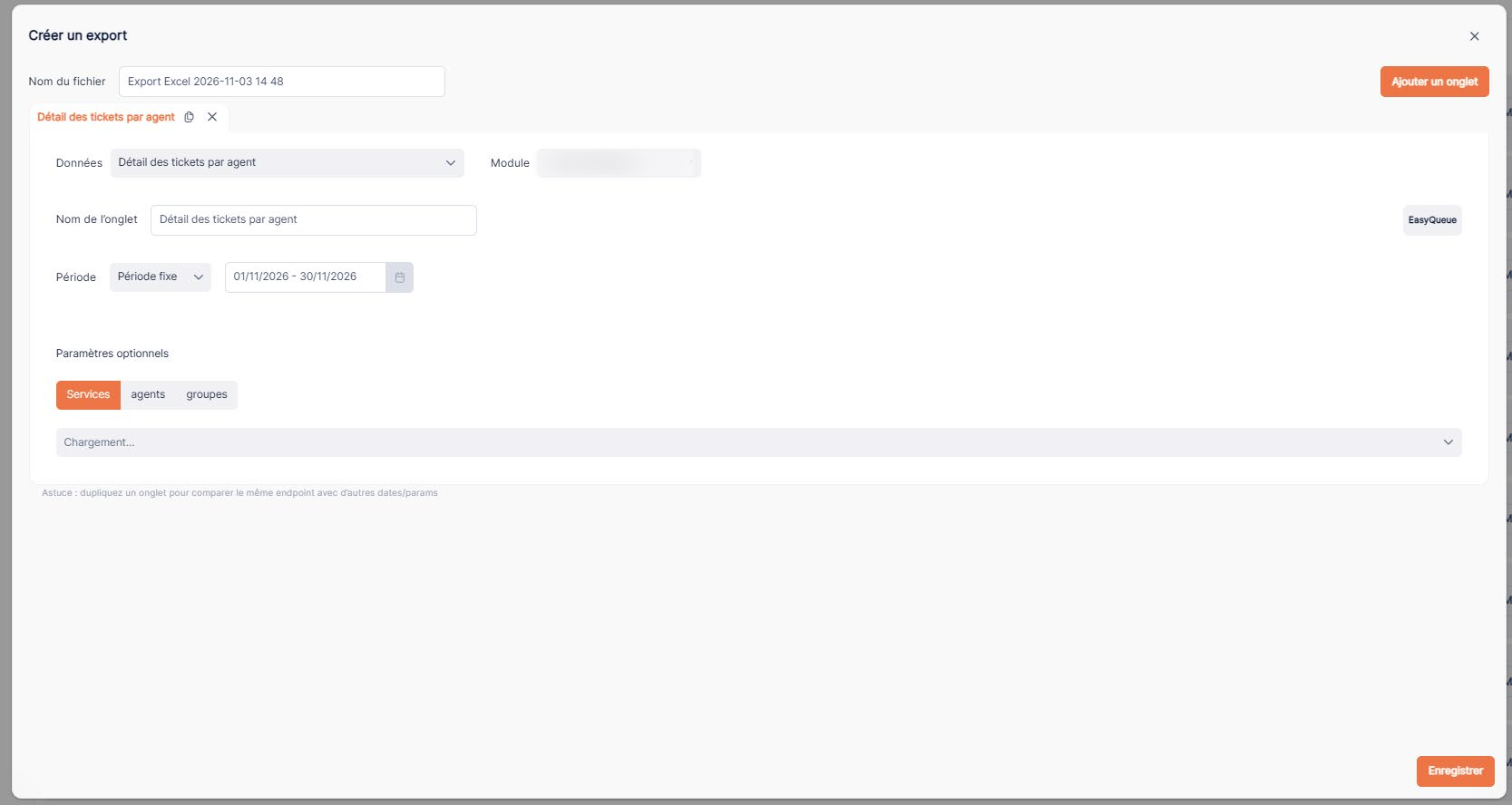
4. Configure the sheets
Add the required sheets and configure their contents.
5. Confirm and check
Confirm the export, then review the preview to check the result.