Prerequisites
To retrieve and/or send data from Microsoft 365 applications such as Teams, SharePoint, Insights, and many others, we need to follow a certain configuration within our Azure platform.
First, it is essential to have an Office 365 environment. In this example, we will use the Azure environment of Mediawind.
In AAD (Azure Active Directory), go to:
"Enterprise applications" ➔ "Manage" ➔ "All applications"
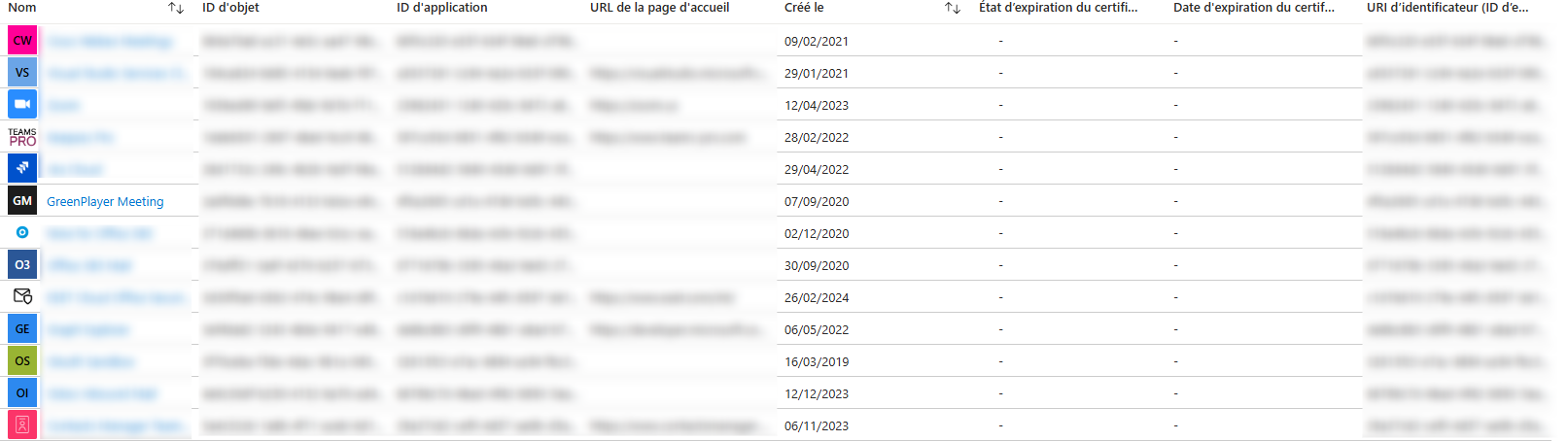
This list contains all the applications in our AAD. As we can see, there is a GreenPlayer Meeting application in the list. That is the one we need!
Click on the application, then "Security" ➔ "Permissions"
You will then see a list of permissions like the one below. These permissions represent the access we are entitled to when we use the Graph API.
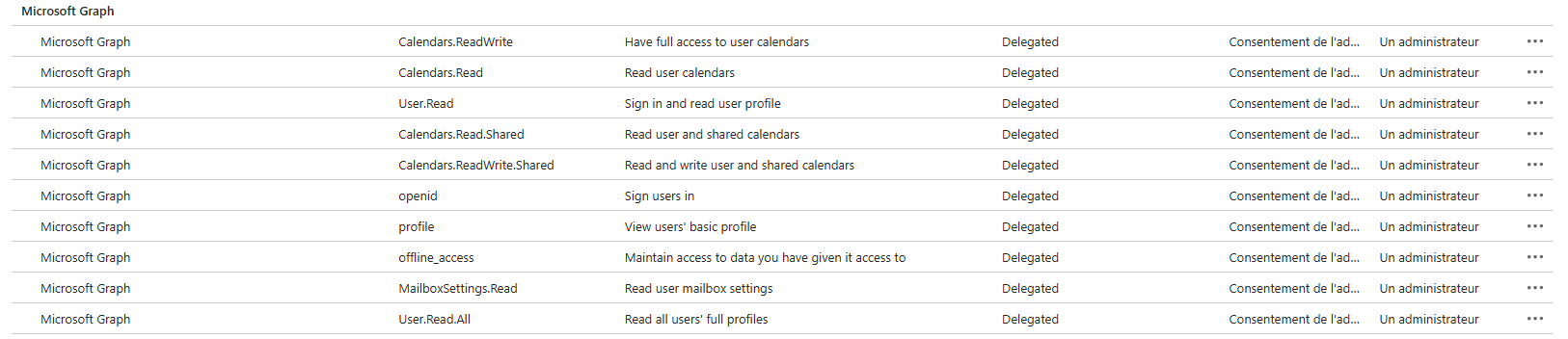
These permissions are enabled and disabled through an Azure Administrator account.
For the Meeting module, we will need several of them:
-
User.Read (reads the data of the signed-in user)
-
User.Read.All (reads the data of any user in the application)
-
openid (enables sign-in)
-
profile (enables profile retrieval)
And especially:
-
Presence.Read (reads the Teams status of the signed-in user)
-
Presence.Read.All (reads the Teams statuses of all users in our organization)
How to add these permissions?
Still on the permissions page, click on Application Registration.

Once on this page, you can add the desired permissions.
WARNING!
Add permissions carefully! Each permission has a certain level of access to your application data, and some of them can expose data quite broadly. Therefore, make sure to research them before adding them.
Adding or removing permissions can have a significant impact on the applications in the organization.
In addition, only an admin user can add permissions.
What is the link between the Meeting module and these permissions?
It is possible to link your Office365 account with your Meeting module.
Go to "Administration" ➔ "Office 365", then click to sign in.
During this operation, Meeting will make a Graph call to obtain credentials that will be inserted into the "modules_meeting_graph" table.

In the table, you will find your access_token, a JWT token that contains all the information Graph needs to identify you, along with the permissions mentioned above.
And in the "scope" column, we can see the permissions granted to our user; it should normally include the two scopes "Presence.Read" and "Presence.Read.All".
Each time you sign in, a new call is made to Graph, and therefore the token is inserted again in the database.